



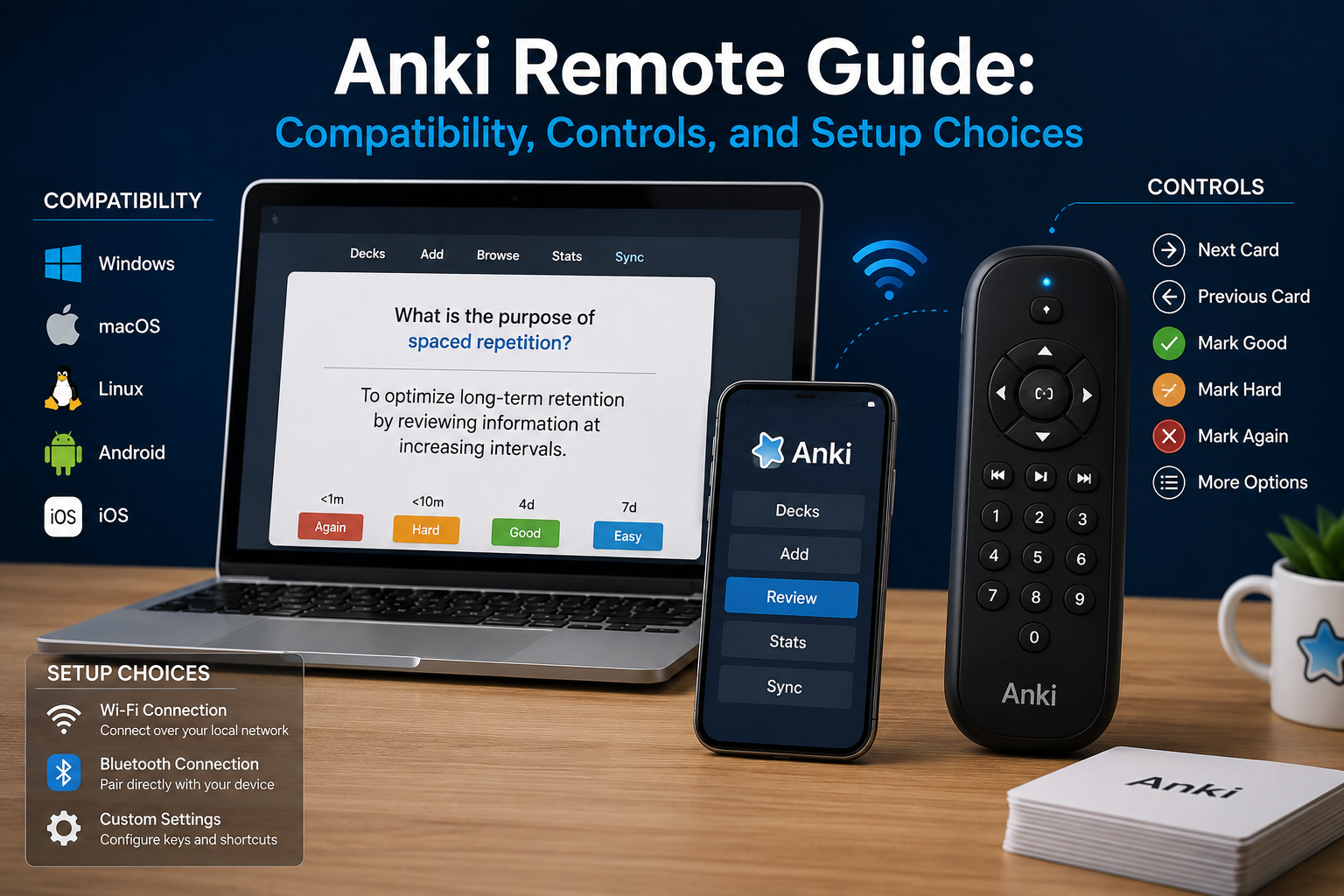
An Anki remote is a small Bluetooth controller used to send review inputs without reaching for a keyboard, trackpad, or phone screen. MODI is one option built around Anki review workflows, with one mode that behaves like preset keyboard input and another that exposes gamepad-style controls for custom mapping. Before buying or setting one up, the practical questions are simple: which device will you review on, which app will receive the input, and whether you need fixed defaults or configurable buttons. Students evaluating this approach can check Bluetooth Anki remote for current mode, compatibility, and setup information before changing their review routine.
What Anki Remotes Actually Do
A remote does not change how Anki schedules cards or decides what you remember. It only sends button presses to the device running your review app. On desktop Anki, that may mean ordinary keyboard commands such as revealing an answer, choosing an answer button, undoing, suspending, escaping a screen, or moving with direction keys. On mobile, it usually means assigning controller inputs inside AnkiMobile or AnkiDroid.
That distinction matters because compatibility is shared between the remote, the operating system, Bluetooth pairing state, and the app. MODI is an independent accessory. It is not made, endorsed, or certified by Anki, AnkiMobile, AnkiDroid, Quizlet, Apple, Google, Microsoft, or Amazon. The remote can only help where the current app accepts the input type being sent.
Check Compatibility Before You Buy
Start with the device you plan to use most. For macOS, Windows, and Linux desktop review, MODI’s Keyboard Mode is the simplest path because it uses preset keybindings and does not require the MODI desktop add-on for the default workflow. If you want to remap buttons inside desktop Anki, Switch Mode plus the optional MODI add-on is the better fit.
For iPhone and iPad, use Switch Mode with AnkiMobile’s gamepad settings. AnkiMobile can assign configurable gamepad actions when iOS recognizes the controller profile. For Android, use Switch Mode with AnkiDroid’s key bind settings. MODI can also be used for basic desktop-browser Quizlet control in Keyboard Mode, but this should be treated as app-dependent keyboard input, not universal support for every study site or shortcut-based program.
Keyboard Mode Versus Switch Mode
Keyboard Mode is intended for desktop use on macOS, Windows, and Linux. It sends preset inputs suited to common Anki review actions, including Again, Hard, Good or Next, Easy, Undo, Suspend, Escape, Spacebar, and direction-key navigation. This is the right first choice when you want to pair the remote and begin using standard desktop controls with minimal configuration.
Switch Mode is for gamepad-style input. Choose it for AnkiMobile, AnkiDroid, or desktop Anki when you want custom remapping through the MODI add-on. The tradeoff is that setup moves from simple preset keyboard behavior to app-level configuration. That is useful when you want the app to decide what each button does, but it also means a missed setting inside the app can make a correctly paired remote appear unresponsive.
A Reliable First Setup Path
For desktop Keyboard Mode, open the device’s Bluetooth settings, hold A + Home for one second, and select the MODI connection. After a successful Keyboard Mode connection, the center LED becomes solid green. Open desktop Anki and test basic review controls before installing anything else. If the default actions cover your workflow, no Anki add-on is required.
For Switch Mode, open Bluetooth settings, hold Y + Home for one second, and select the MODI connection. After a successful Switch Mode connection, the center LED becomes solid blue. On iPhone or iPad, open AnkiMobile settings, go to Review, then Gamepads, and assign the actions you want. On Android, open AnkiDroid settings, go to Controls, then Set Key Binds. In AnkiDroid, X-Y-B-A inputs can appear visually as Y-X-A-B because of a third-party display mapping issue; treat that as a label mismatch and test the assigned command rather than relying only on the displayed button name.
The important point is to pick one mode deliberately, finish Bluetooth pairing, configure the app only if the mode requires it, and test inside an actual review screen. Test the expected action on a low-stakes review card before treating the configuration as complete.
When The Desktop Add-On Matters
The MODI desktop add-on is optional and is mainly for custom remapping in desktop Anki. Its add-on code is 406900239. A typical install path is Tools, Add-ons, Get Add-ons, enter the code, restart Anki, then open MODI Anki Remote from the menu to configure buttons.
Do not install the add-on just because the remote exists. If you are using Keyboard Mode on desktop and the preset controls match your review habits, the add-on is not part of the default path. Add-ons extend desktop Anki, and they may need updates after Anki changes, so keeping the setup simpler can make troubleshooting easier.
Switching Devices Or Modes
Bluetooth devices often remember old pairings, which can create confusion when you move a remote between a laptop, phone, tablet, or another mode. When changing from Keyboard Mode to Switch Mode, or from Switch Mode back to Keyboard Mode, forget every saved MODI or Anki remote entry in the host device’s Bluetooth settings. Then repeat the full pairing steps for the desired mode.
Use the same forget-and-repair process when moving the remote to a different device. Once paired, pressing Home wakes the remote and reconnects in the last-used mode. If the remote connects but does not control the app after a fresh pairing, restart the host device and try again before assuming the remote is faulty.
Battery And Lights
MODI uses a 3.7 V, 330 mAh battery and is rated at up to about 16 hours of continuous use under the manual’s stated conditions. Treat that as an approximate operating figure, not a promised duration. Practical battery life depends in part on whether the decorative remote LEDs are kept off when they are not needed.
The low-battery signal is a quickly flashing red LED. While charging, the LED flashes green. When charging is complete, the charging LED turns off. Decorative lighting can be toggled by double-clicking the Light button. Because the documented light patterns do not provide a battery percentage, do not try to estimate precise charge level from an undefined LED state.
Buying Decision Checklist
Choose an Anki remote when you want a dedicated Bluetooth controller for review inputs and your main device supports the mode you plan to use. Choose Keyboard Mode if desktop Anki with preset controls is enough. Choose Switch Mode if you review on AnkiMobile or AnkiDroid, or if you want desktop remapping through the add-on.
Hold off if your main app cannot accept keyboard or gamepad input in the way you need, if you need guaranteed support across many unrelated apps, or if you are expecting the remote to change learning outcomes. The cleanest setup is the one that matches your device, uses the fewest required configuration layers, and gives you a clear troubleshooting path when Bluetooth, app settings, or saved pairings get out of sync.